
Explains how users can locate and view invoice-related information.
Sections and Details:
- Main Navigation Items (collapsible Sidebar):
- Collapse Menu: Hide or expand the sidebar for better screen space.
- Homepage: Shows what's pending and the latest activities.
- Inbox: View all incoming messages, both read and unread.
- Suppliers: You can view the list of suppliers under the selected client.
- Assigned Tasks: This is where you will find invoices specifically assigned to you for approval.
Client & Supplier Navigation:
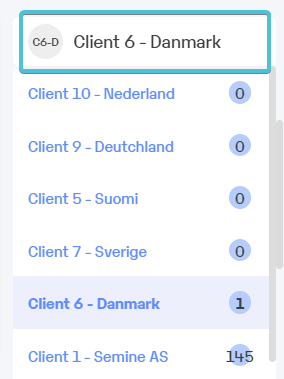
Client List
The Client List shows all clients for which the approver:
Is currently assigned to invoice, or
Has been assigned invoices in the past
The number badge beside a client's name indicates how many invoices are currently assigned to the approver for that client.
Example: If the number badge shows 0, it means the approver had invoices from that client in the past, but none are currently assigned. A badge with 145 means there are 145 invoices currently assigned to the approver from that client.
Supplier View (after selecting client):
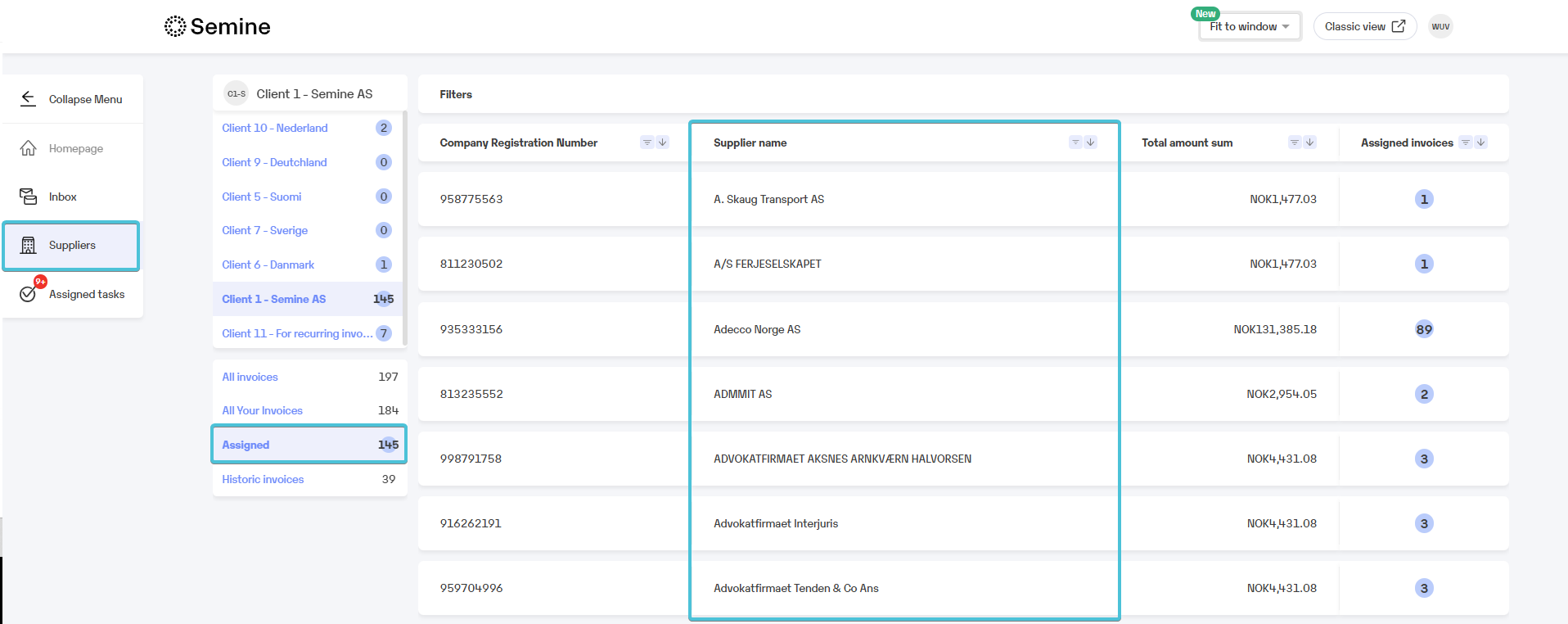
- Lists all suppliers under that client.
- We can navigate to the invoice list by clicking on any of the suppliers.
When you select a client in the Approver Hub, the middle pane updates to show all suppliers associated with that client.
What you will see
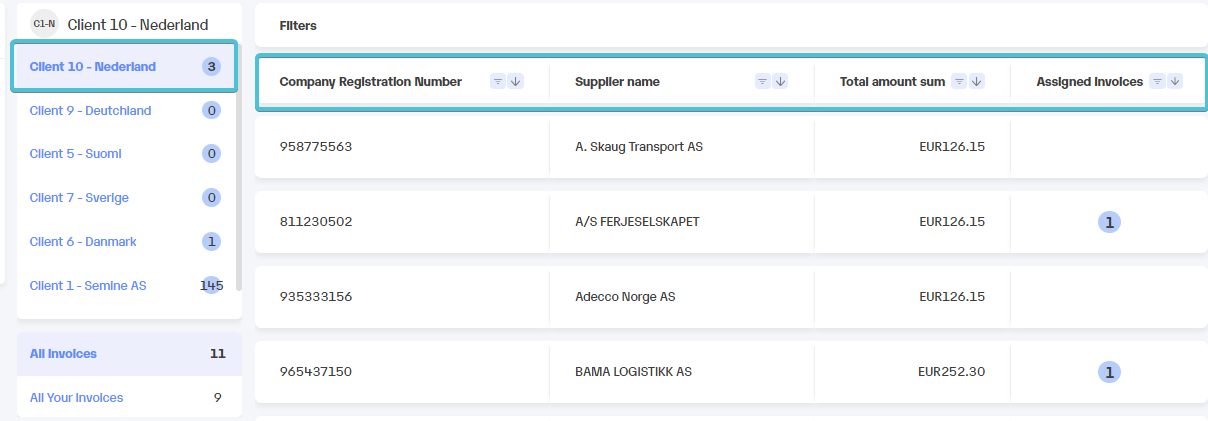
- Supplier list: Once you click on a client name (e.g., Client 10 – Nederland), the list of suppliers linked to that client appears in the centre of your screen.
- Company Registration Number: Displays the registered company ID for each supplier.
- Supplier Name: Shows the name of the supplier.
- Total Amount Sum: Displays the total amount of all invoices currently listed for that supplier.
- Assigned Invoices: Shows a numbered badge indicating how many invoices are currently assigned to you for that supplier.
All invoices and All your invoices
The Approver Hub provides two invoice views: All invoices and All your invoices.
- If you have permission to view organisation-wide invoices, the All invoices tab shows all invoices in the organisation.
- The All your invoices tab shows only the invoices assigned to you.
- If you do not have this permission, both tabs will display the same information.
Note: Click on any of the details under Assigned Invoices to instantly access the invoices assigned to you.
Using filters
At the top of this section, you’ll see a Filters bar. Use this if you want to narrow down the list by:
- Company Registration Number
- Supplier Name
- Total amount sum
- Number of assigned invoices
If a filter is applied, a tag with the filter name will be visible on the right side of the filter bar, along with the "clear all filters" option.
Comments
0 comments
Please sign in to leave a comment.